
UofT Zoom Pro
Getting Started
- Visit UofT Zoom Portal
- Click the “Log In to Zoom” button
- You’ll be redirected to the WebLogin IDPZ screen
- Enter your UTORid and password
- This will activate your Zoom Pro account and take you to your profile dashboard
Using Pro Features in the Zoom App
Follow these steps to use your UofT Zoom Pro account in the desktop or mobile app:
- Open your Zoom application
- If you’re logged in with a different account, sign out first
- Look for the “SSO” (Single Sign-On) option on the login screen (usually marked with a key icon)
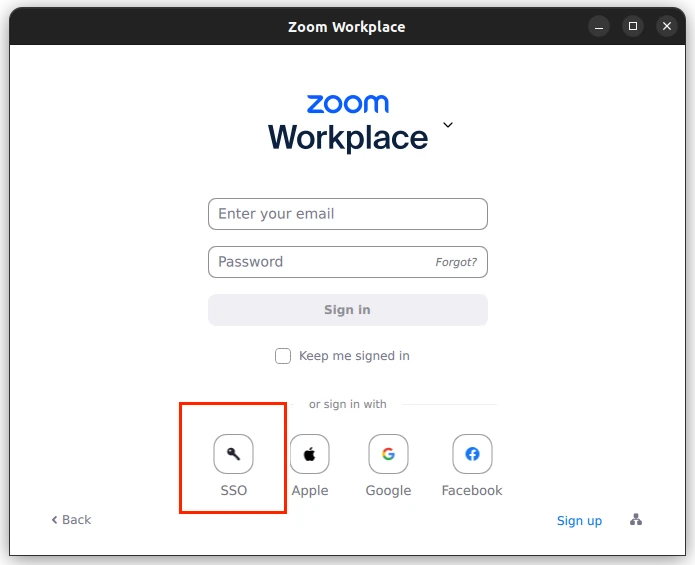
- Click SSO
- When prompted for the domain, enter: utoronto.zoom.us
- Click Continue
- You’ll be redirected to the WebLogin IDPZ screen again
- Enter your UTORid and password
- The app will now log you in with your UofT Zoom Pro account
Benefits of Your Zoom Pro Account
- No 40-minute time limit on meetings
- Host up to 300 participants
- Cloud recording capabilities
- Advanced polling features
- Breakout rooms
- Custom personal meeting ID
- Meeting scheduling and calendar integration