Free 1Password for UofT Students: 6+ Years of Secure Password Management
Why Bother with a Password Manager?
Most of us either reuse the same password everywhere or store them in a notes app. Both options are terrible for security, and honestly, more annoying than just using a password manager.
1Password stores all your passwords in an encrypted vault. It can generate strong passwords for you, auto-fill them when you need to log in, and sync across your phone, laptop, and browser. You can also share passwords with family members without texting them (please stop texting passwords), and store things like credit card numbers or secure notes.
The main benefit is you only need to remember one master password instead of trying to keep track of dozens of logins.
Setting Up Your Account
Step 1: Visit the Redemption Page
Go to https://1password.com/promo/
Step 2: Enter the Company Token
READ ME CAREFULLY
You’ll need the promo code. To keep bots from scraping it, the full code is capital B followed by:
Step 3: Enter Your Student Email
Use your @mail.utoronto.ca email address. This is your official student email, not any other UofT email you might have.
Step 4: Redeem Your Account
Click the “Redeem 1Password Account” button.
Step 5: Check Your Email
An email from 1Password should show up in your student inbox shortly. If you don’t see it, check spam.
Step 6: Create Your Account
Click the link in the email and you’ll see this page:
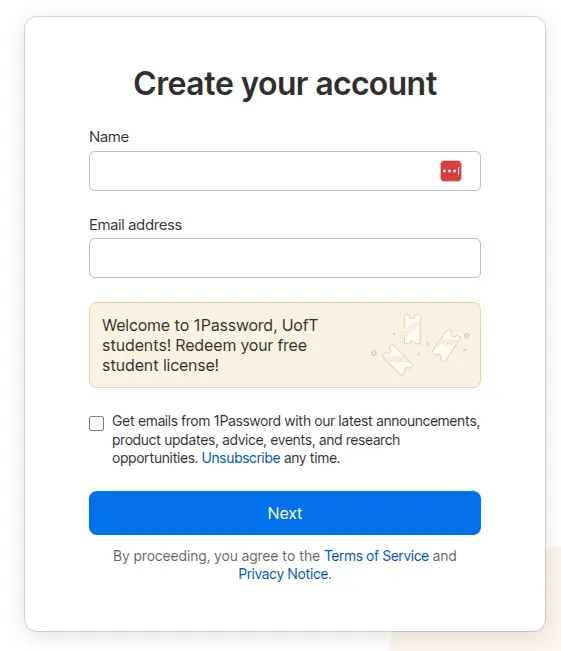
Use your UofT email here.
Now pick a strong master password. This is the only password you’ll actually need to remember, so make it count. A passphrase works well (think random words strung together like “correct-horse-battery-staple” but with your own words).
Adding Family Members
You can invite up to 4 people to join your plan for free. They get their own private vault plus access to any shared vaults you set up.
Go to your account settings after logging in and look for “Invite Family Members”. Send them an email invite and they’re in.
Getting Started
Download 1Password on whatever you use: Windows, Mac, Linux, iPhone, Android. There are also browser extensions for Chrome, Firefox, Safari, and Edge.
The browser extension is probably the most useful part since it auto-fills passwords as you browse.
Start by adding your most important logins. After that, 1Password will offer to save new passwords automatically whenever you log into a site.
Tips
Don’t forget your master password. 1Password can’t reset it for you because of how the encryption works. Write it down somewhere safe if you think you might forget.
Turn on two-factor authentication. Adds another layer of security to your account.
Let 1Password generate passwords for you. Since you don’t have to remember them, they can be as long and random as you want.
Share with family. Shared vaults are convenient for Netflix passwords, wifi credentials, or anything else the household needs access to.
This is actually useful. Six years of free password management that covers your family too is a pretty good deal.
Best regards,
The Graduate Representation Committee (GRC)